
Having trouble accessing the new EZBook environment?
If you are receiving a “404 error” or “502 error” when trying to access EZBook, this indicates that your internet browser’s cache needs to be cleared. Your browser’s cache is a tool used by your internet browser to speed up the page loading process. Sometimes you need to clear this cache to force your browser to retrieve the newest copy available of a previously visited website.
Instructions to clear your browser’s cache
In most web browsers, you can clear the cache from the Privacy or History option within the Settings or Options menu. Ctrl+Shift+Del (for Apple computers use Cmd+Shift+Del) often works as a keyboard shortcut to access these settings.
Following are some browser-specific and device-specific instructions:
IMPORTANT: Be sure and close/quit the browser and restart it after clearing the cache.
IMPORTANT: Be sure and close/quit the browser and restart it after clearing the cache.
Computer/Laptop Devices:
Mobile Devices:
Google Chrome Browser
- Click the Tools menu (
 ).
). - Select History.
- Select Clear Browsing Data from the options on the left. Set the Time Range to All Time. Select “Cookies and other site data” and “Cached images and files” and click the Clear Data button.
- For Windows computers, close and re open Chrome to save your changes. For Apple computers, select Quit from the top menu bar for the changes to take effect.


Firefox Browser
- Click on the Tools menu ( ).
- Click Settings (For Apple computers, click Preferences).
- On the menu to the left, select Privacy & Security.
- Under the Cookies and Site Data option, click the Clear Data... button.
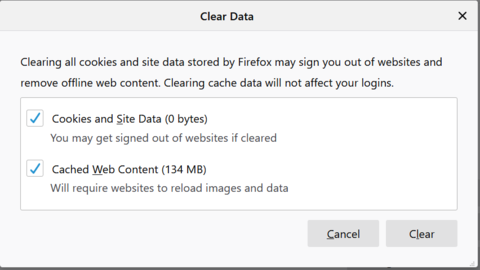
- Select the two options shown below and click the Clear button.
- For Windows computers, close and re-open Firefox to save your changes. For Apple computers, select Quit from the top menu bar for the changes to take effect.


Microsoft Edge Browser
- Click the Tools menu (three dots in the upper-right corner) and open the Settings menu.
- Click Privacy, then Search, and then Services from the menu on the left.
- Under the section Clear browsing data, click the Choose what to clear button.
- Set the Time Range to All Time. Select “Cookies and other site data” and “Cached images and files” and click the Clear Now button.
- Close Microsoft Edge completely for your changes to take effect.


Safari for Apple Computer
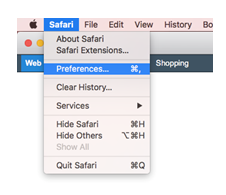
- Click on Safari on the top menu bar and select Preferences.
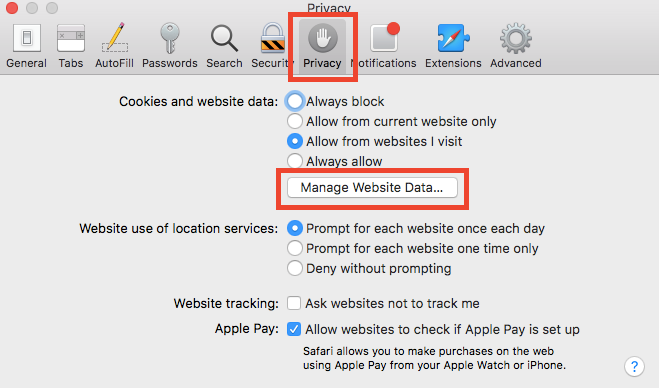
- Click the Privacy tab. Within the Cookies and website data section, click Manage Website Data…
- Click Remove All and then confirm by clicking Remove Now on the pop-up window.
- Go to the Safari menu on the top menu bar and select Quit to close Safari and save your changes.
Safari for Android or iOS
- Go to the Settings app on your device.
- Scroll down to the Safari menu.
- Scroll down and select Clear History and Website Data.
- Select Clear History and Website Data from the pop-up window.
- The button for Clear History and Website Data will turn gray when cache and cookies have been successfully cleared.
Google Chrome for iOS
- Open Google Chrome on your device.
- Click on the menu toolbar in the bottom right corner.
- Select Settings and then select Privacy.
- Select the options for: Cookies, Site Data, Cached Images and Files. At the top, set the Time Range to All Time.
- Click the Clear Browsing Data button and confirm by clicking the Clear Browsing Data button again.
Google Chrome for Android
- Open Google Chrome on your device.
- Click on the menu toolbar.
- Select Settings and then select Privacy.
- Click the Clear Browsing Data button and select the options for: Cookies, Site Data, Cached Images and Files.
- Click the Clear Data button and confirm by clicking the Clear button.
Microsoft Edge for Android
- Open Microsoft Edge on your device.
- Click on the menu toolbar.
- Select History and then click on the Trash icon.
- Set the Time Range to All Time.
- Select the options for: Cookies, Site Data, Cached Images and Files.
- Click the Clear Data button and confirm by clicking the Clear button.